


If you are looking for the pre-installed Mac OS X 10.6 Snow Leopard VMware image, then this post will be useful to find out the correct image and show the steps to install it on VMware Player or Workstation. In this guide, we discuss the 10.6.4 version which can be upgraded to a certain level in VMWare on your Windows computer.
The following method is completely for testing and learning purpose only. Do not use in the production or permanent use. Obviously, we can’t expect a good performance inside the VM, but overall it will be a good experience to learn and test macOS on Windows computer.
We have already mentioned several guides to install Mac on Windows computer by using virtualization technology, you can check them here to find out the latest version.
Installing the Mac OS on VMware which is based in Intel-based is not straight forward. You need to prepare the installation medium on a real Mac computer (or in a working Mac OS X VM), setup the proper boot loader, patch the software, and modify the VMX configuration file. To avoid these all steps, we can use the preinstalled image as shown in this guide.
Why Pre Installed Mac Snow Leopard Image?
- Easy to import in VMware and start using it.
- Mac Installation already is done, DVD or ISO not required.
- Saves your time by avoiding installation and patching for x86 computers.
- Drivers already installed. Sound, Network and Screen resolution working fine in this image.
- Updating to other versions working well.
- Not required to install any boot loaders.
My PC Configuration;
I have done the below demonstration on my Intel computer which has the following configuration.
- Intel Core2Duo 2.66GHz
- 3GB DDR2 RAM
- Intel P35 Chipset
- Windows 7 32 Bit Host
Required Products: Mac 10.6.4 Snow Leopard on VMware
I’m going to install and use this image on VMware Player, you can try on the VMware workstation as well. I have published similar posts about installing OS X 10.5 Leopard on VMware and Oracle VirtualBox with a pre-installed image earlier, you can check the links below.
Install Mac 10.5 Leopard on VMware Workstation
Install Mac 10.5.5 Leopard on Oracle VirtualBox
Products Needed for this method:
- Latest VMware Player or Workstation.
- Snow Leopard VMware Image (It’s a torrent download. Size is approximately 2.3GB with 7z compressed format.)
- Read this post and make sure VT is enabled on host computer BIOS.
Installation Steps
1) Extract the image. It contains VMX, VMDK and other tools required.
2) Make sure hardware VT is enabled.
3) Open Mac OS Snow Leopard.vmx file in VMware Player.

Edit virtual machine settings as you like. I suggest increasing the RAM and number of Processor Cores. If Mac OS stuck with any kernel errors, then change processor core to 1. Do not change any more settings in virtualization engine under processors.
4) Power on the virtual machine. I’m sure you will get Snow Leopard desktop without any problems. Do not worry about the language you see on the screen. I already changed it to English. Follow the steps below to change the language inside the virtual machine.
5) Click on Preferences icon on the desktop.

6) Click Languages icon.
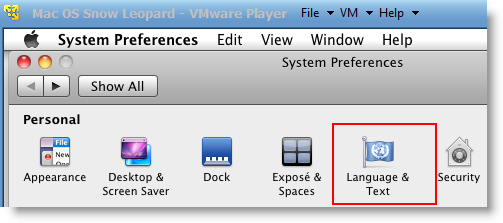
7) Press Edit List button and remove unwanted language and leave U.S English. Also, go to Formats and change the region that matches your location.

Log off and log in, you will see the U.S English desktop and menus.
8) Admin Password for Image
Admin user name for this image is svp and the password is 123. You can use this 123 password to reset a new password for root.
9) USB devises Access
Yes, it worked. My external USB hard disk and flash disks worked inside Mac Virtual machine without any glitches. I had to mount the external hard disk in disk utility to make it work.

10) Network
Bridged and NAT network worked out-of-the-box without any patches in this image.

11) Multiple Screen resolutions and Wide Screen support available on this VM. The best part is, if you change the VMware Player screen size, Snow Leopard screen size also changes according it to fit the screen.
Check my earlier post here to learn how to install multiple screen resolutions in Mac OS X virtual machines.
12) Sound
For some reasons, the sound did not work for me straight away. If it doesn’t work for you, go to the extracted folder (from the download) and locate the SVP folder. Install EnsoniqAudioPCI.mpkg in Mac virtual machine. Restart the machine, the sound will work after it.

13) Software update
This image is having updates up to 10.6.2. Software update to 10.6.4 worked without any issues. I downloaded 10.6.4 combo updates from Apple site and updated successfully.

There you go, you are having a working Mac OS X 10.6 Snow Leopard on VMware with your normal Intel PC. I’m sure this will work on the all latest Intel processors as long as hardware virtualization (VT) support available.
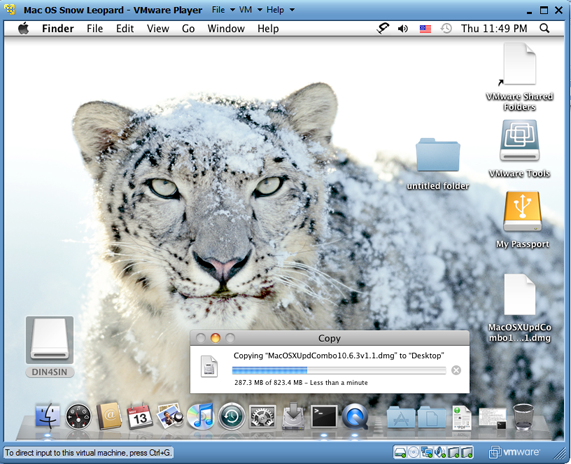
Here is a screenshot of a working virtual machine with this pre-installed VMDK image. If you are using it on VMware workstation, you will be able to take snapshots. That will be helpful to revert back the VM state if anything goes wrong.
14) Booting Issues
If the booting process stuck with the Apple logo, you can try this method.
Shut down the VM completely, open Mac OS Snow Leopard.vmx file in a text editor, look for smc.present=”TRUE” line. Change this value to FALSE. So, it should be smc.present=”FALSE”.
This step may solve any booting issues and keyboard, mouse delay. We have published a new guide on using macOS Bug Sur on VMware.

541 Comments
it says “OS not found”
I’m using core i3 2.53 GHz, 2gb ram, win7 32 bit
btw, I already changed the iso from ‘darwin’ to ‘darwin_snow’ but still it says “OS not found” please somebody help me…
i got fixed this using darwin_snow_legacy.iso..
hope this will help u too..
darwin_snow_legacy.iso download
http://www.sendspace.com/file/0f4urs
Unfortunatelly, i’m still not able to launch it. I have an AMD Turion X2 CPU, and Windows 7 x64.
Can anybody help me ?
Unfortunately, alot of AMD machines don’t support snow leopard very well. For example, 10.6.4 runs flawlessy on my pc but updating to 10.6.8 gets me a string of errors. Oh well.
Yeah, The version I downloaded worked, but as soon as i did an update to the latest version, it killed the machine. Fortunately I had backed up the virtual hard drive.
The mail app does not work, It says you have v4.0. It can’t be used on OSX v10.6.2. how do you get the correct one?
I ran software update and this fixed it!
I changes the input source to be British, and am displaying the keyboard in the menu bar, It is showing British.
Why then when I type I am still getting the US keyboard layout?
What is the username/password? The said ones in this article does not work. Please advice. Great work btw…
Reset password before change language and keyboard
I too was facing the boot loop of doom. I renamed the darwin ISO to darwin_snow_legacy.ISO. I edited my settings in the VM on the CD rom it was set to use physical drive. I changed the drive to load image, pointed to the Darwin image, and the machine now works!
Hope this helps!
Thank you very much for this. It works perfectly. No problems installing, sound worked out-the-box, all I can say is : Fantastic!
I had this working the other day on VMWare 7.1.3 then decided to try to get Lion working. I installed VMWare 8 and everything stopped working. I went back to 7.1.3 and nothing works. I did everything the same as before but it never gets to the Darth Vader screen anymore. It doesnt seem to recognise the darwin legacy image anymore (I dont get the lines of ……………………… that i used to get) It seems to be using darwin, but no the legacy one. I deleted the orignal darwin one to be on the safe side but still no luck. Any suggestions?
I installed this on Win 7 Home Premium 64-bit and it runs just fine.. So cool! never thought I’d get Mac running on Windows, that’s the best 10 minutes I ever spent… thanks Dinesh from one very happy lady.
works fine when booting from darth vather screen on my AMD laptop. Now trying to update to 10.6.3. 10.6.8 update doesn’t work.
Same: AMD and can’t update.
Update to 10.6.3 works
Can someone seed the torrent. There are zero seeders. Does this image still works?
Worked for me, AMD.
update to 10.6.8 didn’t work.
do sosmebody know till which update it works?
Hello everybody,
Thanks for this tutorial.
I have installed Mac OS leopard 10.6 successfully on my laptop: Compaq 610, Intel core 2 duo 🙂
But I have an issue, when I install Itunes, It ask me to enter a password for Mac admin.
So what is the right password ?
Thanks for your help.
Best regards.
Hi Mate,
I think the password is – 123
amazing, worked with a double click and absolutely no problem. felt inside the russian comuter of this man, it even has russian Safari bookmarks. You’re the man! Worked immediately on a Mac through Windows 7 on Bootcamp……..quite redundant but I need this so I can re-install Mac Os on this mac…gonna BUY mac OS from the app store in here and create a bootable hard drive from this. My original OS X DVD doesn’t work!! And pirate OS X images didn’t work as well. I hope this will work!
I screwed up a few things in the vmx trying to be smart.
Can someone pastebin that file again. Really need it. Cannot download the whole 7z again.
thanks…just install snow leopard 10.6.1 on aspire 4520……using a darwin legacy and Snow_Leopard_10.6.1-10.6.2_SSE2_SSE3_Intel_AMD_by_Hazard…….