Close Menu
    What's Hot

    The Hidden SEO Risks of Data Breaches: How They Damage Rankings and How to Recover

    March 23, 2026

    Will My PC Run Windows 12? NPU and RAM Requirements Explained

    March 21, 2026

    Top 8 Best Battery Saver Apps for Android – You Must Try

    March 21, 2026
    Facebook X (Twitter) YouTube LinkedIn
    Facebook X (Twitter) YouTube LinkedIn
    SysprobsSysprobs
    • Tech Guides
      • Windows
        • Windows 11
        • Windows 10
        • Windows Servers
      • Virtualization
        • VirtualBox
        • VMware
        • Hyper-V
        • Server Virtualization
        • VirtualBox Images
      • PC
        • Linux
        • macOS
        • Hackintosh
        • MS Office
      • Pro IT Tips
        • Internet
        • MS Exchange
        • Fintech
    • Reviews
      • Gadgets
        • Android
        • iPhone
    • Security & Privacy
      • IT Security
    • Trading Gear
      • Laptops
    SysprobsSysprobs
    Home»Windows»Windows 7»Remove Icon Background Color in Windows XP, Windows 7

    Remove Icon Background Color in Windows XP, Windows 7

    DineshBy DineshUpdated:July 17, 2022
    Share
    Facebook Twitter LinkedIn Pinterest Email

    For some special reasons, if you are still using Windows XP or Windows 7, then you will like this post. In this guide, we show you how to remove the desktop icon background color. Most of the time after changing the theme, desktop background or something related to the desktop appearance in Windows XP, you may face this strange display color issue. Let’s learn how to remove it in Windows XP and Windows 7 and make the icon background color transparent

    By default Windows XP theme comes with transparent icon background color as below:

    Default icon background color

    But when you do some changes to the Windows theme or appearance, the transparent color disappears and desktop icons get the background color of the desktop which is configured in ‘Advanced Appearance’ settings. Displaying desktop background color in icons may look ugly on the desktop as below,
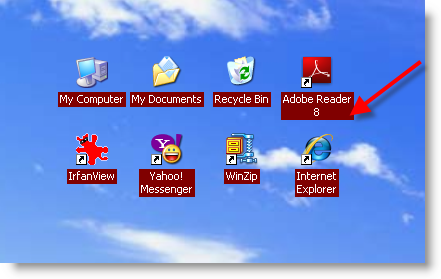
    With background color

    How to Change or Remove Icon Background Color in Windows XP/Windows 7

    1) Right click on empty space on the desktop, go to Properties -> Appearance tab -> Click on the Advanced button,

    Select Desktop under Items and choose the color in ‘color1’.

    If this method fails and you can’t remove the icon background color under the appearance settings tab, then go to the next step.

    2) We can use the ‘Drop shadow’ option in ‘Performance Options’.

    Right click on My Computer and go to Properties, or go to ‘System’ in the control panel. Then in the Advanced tab, click on the Settings button under the performance square.

    Advance settings to remove icon background color

    Under ‘Visual Effects’, scroll down to the last options. Untick the ‘Use drop shadows for icon………’ option as shown below. Press OK to apply the settings.

    drop shadow option

    Now, no matter what desktop color is selected currently, the Windows XP icon background will be removed and it will be transparent with the desktop as below Transparent icon background color

    There is another possible reason for icon background color is ‘web background’. If any weblink is set as a desktop background, you will be facing this issue. You must remove the web URL from the desktop background option in Windows XP.

    By the way, you will not face this icon background color issue in Windows 10, and Windows 8, since they detect and change the icon background automatically based on the theme. Basically, the icons on the latest Windows OS are transparent and do not carry a background color.

    Windows 7 xp issue
    Share. Facebook Twitter Pinterest LinkedIn Tumblr Email
    Dinesh
    • Website

    Dinesh is the founder of Sysprobs and written more than 400 articles. Enthusiast in Microsoft and cloud technologies with more than 15 years of IT experience.

    Related Posts

    How to Block Facebook on Computer- Windows 11/10 (Other Websites Also)

    January 9, 2023

    [Fixed] Language Bar Missing from Taskbar in Windows 10/11/8.1 or Win 7

    December 5, 2022

    How to Fix Temporary Profile in Windows 7/ 8.1/10

    August 15, 2022

    How To Make Windows 7 Faster? We have 28 Steps to Speed Up

    August 8, 2022

    How to Change Date Format in Windows 10/11 to dd-mm-yyyy

    July 21, 2022

    Fix – Admin Share (C$) Not Working in Windows 10/11/8.1/7

    July 17, 2022

    9 Comments

    1. Zajo on July 2, 2010 3:18 pm

      i tried that alredy but it doesnt work not even a bit

    2. sant bohara on February 25, 2011 1:45 am

      I DID AS PER ABOVE STEPS BUT NOT WORKING, STILL THERE IS BG COLOR….. PLS HELP !!!

      • Muhammad on November 17, 2011 9:49 am

        “If the above guide doesn’t work you might want to check if you are displaying a website as your background. To check this, right-click on the desktop then click Properties. Select Customize desktop under Desktop tab, then select the Web tab on the desktop items window and deselect any web pages that are shown.”

        • ianh on April 9, 2012 2:05 am

          thanks big help Muhammad

    3. habib on March 13, 2011 2:19 am

      thankx

    4. Wong on February 7, 2012 11:27 am

      Tried this, but it didn’t work. Are there any other settings that need to be changed?

    5. Sher Zanman on May 28, 2012 4:28 pm

      I try but color still there. pl. help

    6. John S on June 3, 2012 8:43 pm

      Thanks Muhammad – your advice worked for me..

    7. Mani on June 12, 2012 12:27 pm

      Thanks!, it worked

    Top Posts

    Where is the Outlook QR code? How to Use?

    February 16, 2024

    How to Install and Use Outlook for Ubuntu 24.04 LTS/24.10

    December 10, 2025

    Install Windows XP on VirtualBox by Pre-Installed Image

    August 14, 2022
    Don't Miss

    The Hidden SEO Risks of Data Breaches: How They Damage Rankings and How to Recover

    March 23, 2026

    Data breaches are rarely ignored when noticed, but they are often associated only with compliance…

    Will My PC Run Windows 12? NPU and RAM Requirements Explained

    March 21, 2026

    Top 8 Best Battery Saver Apps for Android – You Must Try

    March 21, 2026

    Smart Ways Students Can Safeguard Personal Data Online Today

    March 18, 2026
    Stay In Touch
    • Facebook
    • YouTube
    • Twitter
    • LinkedIn
    Latest Posts

    The Hidden SEO Risks of Data Breaches: How They Damage Rankings and How to Recover

    March 23, 2026

    Will My PC Run Windows 12? NPU and RAM Requirements Explained

    March 21, 2026

    Top 8 Best Battery Saver Apps for Android – You Must Try

    March 21, 2026
    INFORMATION
    • About
    • Contact Us
    • Privacy Policy
    ABOUT

    Established in 2007, Sysprobs is a trusted resource for IT professionals and System Administrators. We bridge the gap between enterprise infrastructure and the future of fintech security. From Windows virtualization to Blockchain node management, we provide technical guides for the modern digital economy.

    POPULAR SECTION

    WINDOWS 11
    WINDOWS 10
    VIRTUALIZATION
    IT SECURITY
    PRO IT TIPS


    Sysprobs
    Facebook X (Twitter) YouTube LinkedIn
    • Home
    • Windows
    • Cloud
    • Security & Privacy
    © 2026 SYSPROBS: System Security & Fintech Solutions. Protected by Cloudflare.

    Type above and press Enter to search. Press Esc to cancel.