
If you like to change the measurement and all display units from inches to cm in Word, you are at the right place. By default, the display measurement units of MS Office products, including Word 2019/2016/2013 and Office 365, are set to show in Inches. This small guide would be helpful to change inches to cm (Centimeter) or cm to inches in Microsoft Word.
For example, if I have measurements for a label or sticker in cm, and I need to create that exact size label in MS Word, which is set to show in Inches, definitely it will be slightly difficult to adjust it properly. I need to convert them to inches manually and do the proper settings. Width, height, margins and paper size will be in Inches in MS Word by default.
Changing the display option to cm is better to make the creation easy. If you are familiar with the centimetre of your geographical location, it is ideal for changing the default settings as described below.
Here is an example of how MS word shows the paper size in inches by default.
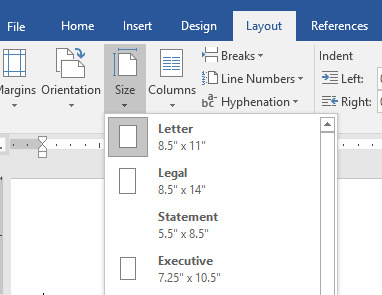
Change Inch to cm in Word (All versions including Office 365)
All MS Office versions have the same settings to change the measurement units from inches to the centimeter. You can find that under the Options of your MS Office version, as shown below.
1) Click on File and go to Options.
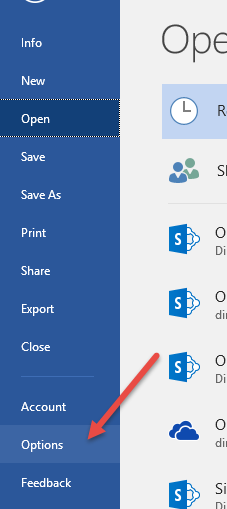
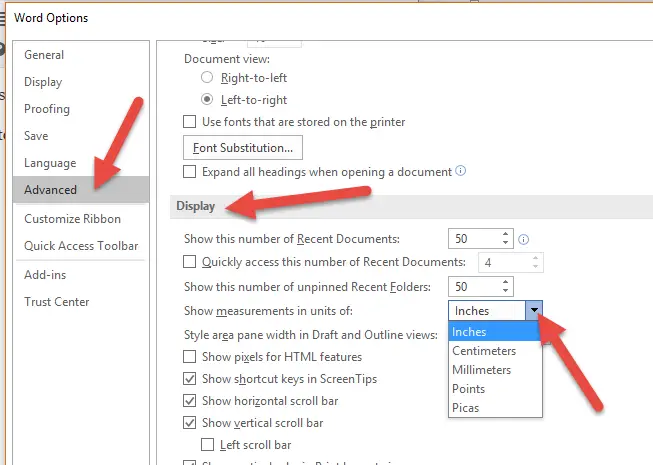
2) Click on Advanced and go to Display options as shown below.
Change the measurements unit size from Inches to Centimeters (cm). More options are also available here. Press OK at the end of the box.
You can use the same place to change the cm to inch to back in MS Word.
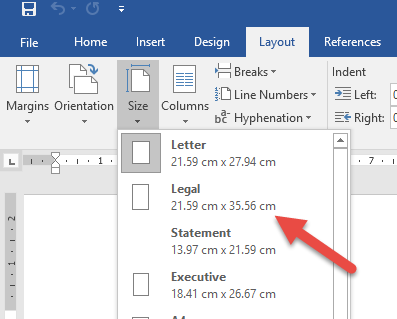
3) After the above change, all measurement units will be shown in cm in your MS Word product, including Office 365.
The same paper size measurement changed to cm in MS Word 2016.
How to get CM Ruler in Word?
To get a CM ruler in MS word, you need to follow the 2 steps.
- Step 1: Change the measurement units from inch to cm, as shown in this guide. It is available under Options-> Advanced -> Display then ‘Show measurements in units.’
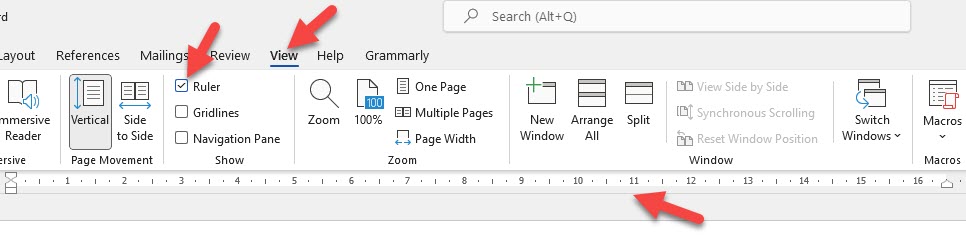
- Step2: Since we changed all measurement units to CM, now enable the ruler from the ‘View‘ menu of the Word ribbon bar. This will display the rule in Word if it is not enabled earlier. The ruler will be in centimetres.
We hope this simple guide helps change the measurement size from inches to cm in Word (Office 2010,2013, 2016 and Office 365 versions).
Read Also: How to insert Angle symbol in MS Word.


![[Fixed] Outlook Password Pop Up Screen is Blank/White – Disappears](https://www.sysprobs.com/wp-content/uploads/2019/11/MS-Outlook-211x150.jpg)


Thanks a million!! You helped me a lot!!!
I appreciate!
JJ
thanks it’s very helpful….. 🙂
Thanks a lot, I could solve my problems in Word 2007,
I like it.
Thank you God I really appreciate your help brother or sister
Good blessings
tq
i do really appreciate it really helpful
thanks very much